The best hard drive docking stations for Mac make it easier to access bare SATA or NVMe drives without installing them inside an enclosure. They are useful for backups, upgrades, data recovery, and moving files between computers.
This roundup compares 10 docking stations with different bay counts, connection speeds, drive formats, and cloning features, so you can choose the right fit for your Mac and storage workflow.
Best 10 Hard Drive Docking Stations for Mac Picks for 2026
Best Dual-Bay Cloner
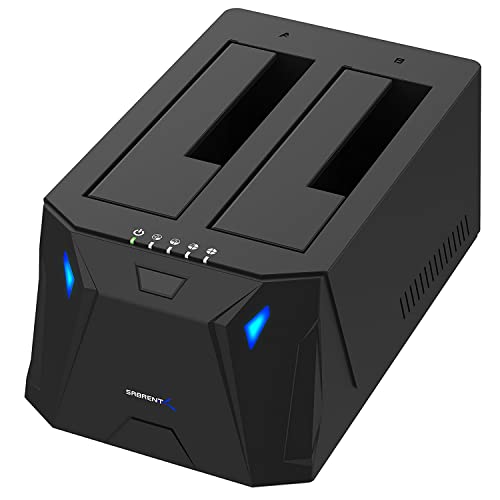
- Dual bays for two SATA drives
- Offline cloning without a computer
- Supports 2.5-inch and 3.5-inch drives
Best For: Drive swapping and simple offline cloning
Best USB-C Versatility

- Supports NVMe and SATA drives
- 10Gbps USB-C interface
- Includes USB-C and USB-A cables
Best For: Mixed-drive Mac workflows and fast backups
Best High-Capacity Duplicator

- Five SATA drive bays
- 1:4 offline duplication
- Up to 100TB stated capacity
Best For: Large SATA libraries and batch duplication
Best Lay-Flat Value
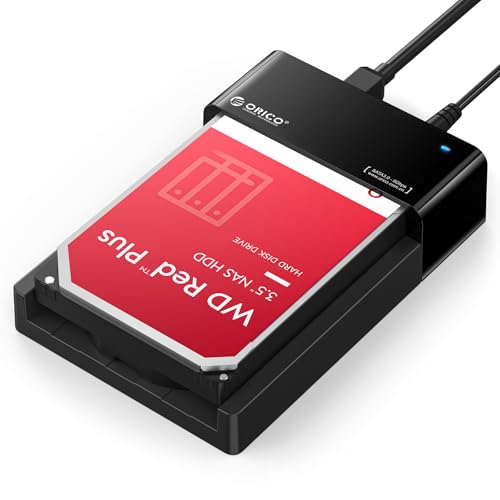
- Single-bay dock for 2.5-inch and 3.5-inch SATA drives
- USB 3.0 with UASP and up to 24TB per drive
- Tool-free, hot-swappable design with included power adapter
Best For: Affordable single-drive access, backups, and migration on Mac
Best for Cloning

- Reads and writes two SATA drives simultaneously
- Offline 1-to-1 cloning without a computer
- USB-C connection with tool-free hot-swapping
Best For: Two-drive transfers and offline SATA drive cloning
Best Basic Single-Bay Dock
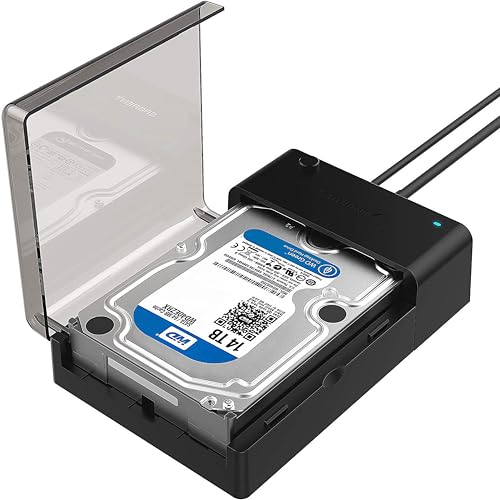
- Single-bay dock for 2.5-inch and 3.5-inch SATA drives
- USB 3.0 with UASP and tool-free hot-swapping
- Includes 12V power adapter for 3.5-inch drives
Best For: Simple SATA drive access and backups on macOS
Best Multi-Drive Pick

- Four trayless bays for 2.5-inch and 3.5-inch SATA drives
- Offline cloning with LED progress indicators
- USB 3.0 transfer speeds up to 5Gbps
Best For: Multi-drive Mac backups and storage management
Best USB-C Speed Pick

- Up to 10Gbps USB 3.2 Gen 2x1 performance
- Supports 2.5-inch and 3.5-inch SATA drives
- Includes USB-C-to-C and USB-A-to-C cables
Best For: Fast single-drive transfers on Mac
Best Dual-Bay Clone Pick

- Two bays for 2.5-inch and 3.5-inch SATA drives
- Offline cloning with a larger target-drive requirement
- USB-C and USB-A connectivity up to 5Gbps
Best For: Mac users needing dual-drive cloning
Best Dual-Bay Cloner – Sabrent USB 3.0 Dock
For Mac users who need to access or duplicate two standard SATA drives, this dual-bay option is one of the more flexible hard drive docking stations for Mac. It accepts both 2.5-inch and 3.5-inch HDDs or SSDs, connects over USB 3.0, and supports offline cloning without requiring a computer.
Best For: Users who regularly swap two SATA drives or want a straightforward offline cloning dock.
Pros:
- Supports 2.5-inch and 3.5-inch SATA HDDs and SSDs.
- Dual bays allow two drives to be connected at once.
- Offline cloning works without a computer.
- Plug-and-play setup requires no drivers.
Cons:
- Limited to SATA drives rather than M.2 NVMe storage.
- Uses USB 3.0 rather than a 10Gbps USB-C connection.
This is a practical choice for Mac-compatible SATA storage workflows, especially when dual-drive access and offline duplication matter more than the newest interface speeds.
Best USB-C Versatility – Sabrent NVMe and SATA Dock
This lay-flat dock is a strong all-around pick among hard drive docking stations for Mac because it handles both M.2 PCIe NVMe drives and 2.5-inch or 3.5-inch SATA storage. Its 10Gbps USB-C connection, included USB-C and USB-A cables, and tool-free design make it convenient for newer and older Mac setups.
Best For: Mac users who work with both NVMe and SATA drives and want broad connection compatibility.
Pros:
- Supports M.2 NVMe plus 2.5-inch and 3.5-inch SATA drives.
- 10Gbps USB 3.2 Gen 2 interface supports fast transfers.
- Includes both USB-C-to-USB-C and USB-A-to-USB-C cables.
- Offers offline cloning with a direction switch and progress LEDs.
Cons:
- Drives are not included.
- Offline cloning requires a target drive equal to or larger than the source.
With support for multiple drive formats and both common USB connection types, this dock is especially useful for mixed-storage households, upgrades, and fast backups on macOS.
Best High-Capacity Duplicator – ORICO 5-Bay USB-C Dock
For professional users managing several SATA drives, the ORICO 5-bay model stands out among hard drive docking stations for Mac. It provides five bays, supports up to 20TB per drive according to the supplied specifications, and can duplicate one source drive to four targets with a single button.
Best For: Photographers, media professionals, and other users who need high-capacity multi-drive management or repeated duplication.
Pros:
- Five bays support 2.5-inch and 3.5-inch SATA HDDs and SSDs.
- 1:4 offline duplication can create four copies without a computer.
- Supports up to five 20TB drives for up to 100TB of stated capacity.
- Includes USB-C-to-C and USB-C-to-A connectivity.
Cons:
- Designed for SATA storage and does not list NVMe support.
- The 1:4 duplication process overwrites target disks, so backups are required first.
- USB 3.2 Gen 1 is slower than 10Gbps USB 3.2 Gen 2.
This is a specialized, high-capacity solution rather than a compact everyday dock. Its value is greatest when multiple SATA drives, large media libraries, or batch duplication are part of your Mac workflow.
Best Simple SATA Dock – Sabrent USB 3.0 Single-Bay Dock
This single-bay Sabrent dock is a straightforward option for Mac users who need access to one standard SATA drive at a time. It supports 2.5-inch and 3.5-inch HDDs or SSDs, includes the required AC adapter, and uses USB 3.0 with UASP for transfers up to 5Gbps.
Best For: Users who want an uncomplicated dock for reading, backing up, or swapping one SATA drive.
Pros:
- Accepts both 2.5-inch and 3.5-inch SATA drives.
- Includes the power adapter and USB 3.0 cable.
- Supports UASP and transfer speeds up to 5Gbps.
- Auto-sleeps after 30 minutes of idle time.
Cons:
- Only one drive can be used at a time.
- Does not support SAS or M.2 NVMe drives.
- New or blank drives must be initialized in macOS Disk Utility before use.
If your needs are limited to one SATA disk at a time, this dock keeps the setup simple while still providing support for both desktop and laptop-size drives on a Mac.
Best Lay-Flat Value – ORICO 24TB SATA Dock
If you need hard drive docking stations for Mac that keep setup simple, the ORICO lay-flat dock is a practical single-drive option. It accepts bare 2.5-inch and 3.5-inch SATA HDDs or SSDs, connects over USB 3.0, and supports drives up to 24TB. Its tool-free design also makes drive swapping straightforward.
Best For: Mac users who want an affordable, single-bay dock for accessing, backing up, or migrating SATA drives.
Pros:
- Supports 2.5-inch and 3.5-inch SATA HDDs and SSDs up to 24TB per drive.
- USB 3.0 with UASP offers transfer rates up to 5Gbps and remains backward compatible.
- Tool-free, hot-swappable design and lay-flat construction help simplify use and cooling.
- Includes the power adapter, USB 3.0 cable, adapter converter, and manual.
Cons:
- Supports only one drive at a time.
- Uses a USB Type-A connection, so a USB-C-only Mac may require an adapter.
The ORICO is a sensible pick for routine storage access and backups, especially if you prefer a compact, no-tools workflow. Its single-bay layout is less suitable for simultaneous drive work or offline cloning.
Best for Cloning – SABRENT Dual-Bay USB-C Cloner
For Mac users comparing hard drive docking stations for Mac, the SABRENT EC-CH2B stands out when working with two bare SATA drives. Its dual bays let you read and write both drives through USB-C, while the offline cloning button can copy one drive to another without a computer.
Best For: Mac owners who need two-drive access or convenient offline cloning of compatible SATA HDDs and SSDs.
Pros:
- Dual bays support simultaneous access to two 2.5-inch or 3.5-inch SATA drives.
- Offline 1-to-1 cloning works without a connected computer and reaches up to 60MBps.
- USB-C connectivity, hot-swapping, tool-free installation, and individual bay LEDs add convenience.
- Plug-and-play operation on Mac and Windows requires no drivers.
Cons:
- Only supports SATA drives; IDE/PATA, M.2, NVMe, and SAS drives are incompatible.
- Cloning requires the target drive to be the same size as or larger than the source.
- The included cable is USB-C on the dock end, so the computer needs USB-C or a separate adapter.
The EC-CH2B is the most versatile choice here for two-drive workflows and direct cloning. Be sure your Mac connection and drive types match its USB-C and SATA-only requirements.
Best Basic Single-Bay Dock – SABRENT USB 3.0 SATA Dock
The SABRENT EC-DFLT is a straightforward choice among hard drive docking stations for Mac. It provides a single lay-flat bay for bare 2.5-inch and 3.5-inch SATA drives, uses USB 3.0 with UASP, and offers tool-free, hot-swap operation without requiring drivers on macOS.
Best For: Mac users who want a simple single-drive reader for SATA HDDs and SSDs.
Pros:
- Accepts SATA I/II/III 2.5-inch and 3.5-inch HDDs and SSDs.
- Plug-and-play operation on macOS, Windows 10/11, and Linux.
- Tool-free lay-flat bay supports hot-swapping and includes a power/activity LED.
- Includes a 12V adapter required for stable 3.5-inch drive operation.
Cons:
- Uses USB Type-A rather than USB-C; USB-C-only Macs need a separate adapter.
- Does not support IDE/PATA, M.2 SATA, M.2 NVMe, SAS, or enclosed drives.
- S.M.A.R.T. diagnostics do not pass through the USB bridge, and a drive may need remounting after Mac sleep.
This SABRENT dock is a good fit when you need basic SATA drive access without extra bays or cloning features. Its connection and format limitations are important to check before ordering.
Best Multi-Drive Pick – SABRENT 4-Bay USB 3.0 Dock
For Mac users managing several SATA drives, this SABRENT model is one of the more flexible hard drive docking stations for Mac. Its four trayless bays accept both 2.5-inch and 3.5-inch SATA HDDs and SSDs, while USB 3.0 provides transfers up to 5Gbps.
Best For: Mac users who need simultaneous access to multiple SATA drives, backups, or offline drive cloning.
Pros:
- Holds up to four 2.5-inch or 3.5-inch SATA drives.
- Trayless design makes drive insertion and removal straightforward.
- Offline clone function works without a computer and includes LED progress indicators.
- Includes an external power adapter for stable multi-drive operation.
Cons:
- Uses USB 3.0 rather than the faster 10Gbps USB-C connection found on newer docks.
- Drive cloning requires the dock to be powered off before inserting drives, according to the supplied guidance.
Choose this dock when capacity and multi-drive convenience matter more than maximum interface speed. It is a practical fit for Mac-based backup workflows involving several SATA drives.
Best USB-C Speed Pick – SABRENT USB-C SATA Dock
This SABRENT dock is a strong choice for Mac users seeking hard drive docking stations for Mac with a modern USB-C connection. It supports one 2.5-inch or 3.5-inch SATA HDD or SSD, offers up to 10Gbps through USB 3.2 Gen 2×1, and includes both USB-C and USB-A cable options.
Best For: Mac users who want fast, tool-free access to a single SATA drive and compatibility with drives up to 20TB or larger.
Pros:
- USB-C connection supports data transfer rates up to 10Gbps.
- Works with 2.5-inch and 3.5-inch SATA HDDs and SSDs.
- Tool-free, hot-swappable design simplifies drive changes.
- Supports Windows, macOS, and Linux systems and includes USB-C-to-C and USB-A-to-C cables.
Cons:
- Only one drive can be supported at a time.
- 3.5-inch drives require the included power adapter.
With faster USB-C performance and broad operating-system support, this is the most speed-focused option in the group. It is especially useful for transferring large files or working with newer Mac hardware.
Best Dual-Bay Clone Pick – ORICO USB-C 2-Bay Dock
The ORICO dual-bay dock combines drive access and offline cloning for Mac users comparing hard drive docking stations for Mac. Its two bays accept 2.5-inch and 3.5-inch HDDs or SSDs, connect through USB-C or USB-A at up to 5Gbps, and support capacities up to 22TB per drive for offline cloning.
Best For: Mac users who need two-drive access, offline duplication, and broad compatibility across computers and other USB-equipped devices.
Pros:
- Dual bays support 2.5-inch and 3.5-inch SATA HDDs and SSDs.
- Offline cloning works without a computer when the target disk is larger than the source.
- Includes a USB-C and USB-A 2-in-1 cable and supports up to 5Gbps transfers.
- Supports Windows, macOS, Linux, iPadOS, Android, and various USB-equipped devices.
Cons:
- Its 5Gbps connection is slower than the 10Gbps SABRENT USB-C dock.
- Offline cloning requires the target disk to have greater capacity than the source.
- Only two drives can be used at once.
This ORICO model makes sense when cloning is central to your workflow but four bays are unnecessary. The dual-bay layout and included dual-interface cable also make it convenient for mixed Mac and USB-A setups.
How We Picked the Best Hard Drive Docking Stations for Mac
We focused on practical compatibility and workflow features rather than appearance alone. The selection includes single-bay, dual-bay, four-bay, and five-bay docks, along with models designed for SATA drives, NVMe drives, or both. We also considered USB connection standards, support for 2.5-inch and 3.5-inch drives, UASP support, independent drive access, and offline cloning where available.
Before buying, confirm that your Mac has the required USB-A or USB-C port, and remember that a USB-C connector does not automatically mean USB 3.2 Gen 2 speeds. Your cable, Mac port, and drive can all affect real-world performance.
Quick Comparison
- Best for occasional single-drive access: A compact SATA dock with support for both 2.5-inch and 3.5-inch drives.
- Best for cloning: A dual-bay or multi-bay model with offline cloning support.
- Best for several drives: A four- or five-bay dock that lets you connect multiple disks at once.
- Best for faster modern storage: A USB-C 10Gbps dock, especially one that supports NVMe SSDs.
- Best for mixed drive collections: A dock that accepts both 2.5-inch and 3.5-inch SATA drives, with separate power for desktop drives.
Key Buying Factors for Hard Drive Docking Stations for Mac
Drive Type and Size
Check whether you need SATA, NVMe, or both. Most 2.5-inch laptop drives use less power, while 3.5-inch desktop hard drives generally require the dock’s included power adapter. A SATA-only dock cannot read an M.2 NVMe drive unless the product specifically says it supports NVMe.
Ports and Transfer Speed
USB 3.0 is adequate for many hard drives, but USB-C 10Gbps can reduce transfer times with compatible SSDs. Look at the complete connection path, including the Mac port and cable. A dock connected through a slower hub may not reach its advertised speed.
Bay Count and Cloning
Single-bay models are compact and affordable for simple file access. Dual-bay docks are more useful for drive-to-drive cloning, provided the model supports offline cloning and the source and target capacities are suitable. Four- and five-bay docks are better for users managing archives or several bare drives.
Mac Workflow and Safety
Safely eject mounted volumes before removing a drive. For cloning or backup work, verify the destination drive before starting and keep an additional backup of important files. macOS can read many common formats, but write access and proprietary or damaged file systems may require additional software.
Who Should Buy Which Hard Drive Docking Stations for Mac?
Choose a compact single-bay SATA dock if you occasionally recover files, test an old drive, or upgrade a Mac. Pick a dual-bay cloner if you regularly migrate drives or want a straightforward disk-copy workflow. A multi-bay dock makes more sense for photographers, technicians, and home-lab users who rotate several drives. If your storage includes M.2 NVMe SSDs, select a model that explicitly lists NVMe support rather than relying on the USB-C label alone.