The best wireless drawing tablets give artists more freedom to work without a cable tethering the tablet to a computer. The right model can make digital illustration, photo editing, animation, and remote teaching feel more comfortable and efficient.
Our selection covers compact beginner-friendly tablets, medium-sized work surfaces, and advanced models with shortcut keys, dials, Bluetooth, and high-pressure styluses. Use the guide below to match features, size, and software support to your workflow.
Best 10 Wireless Drawing Tablets Picks for 2026
Best Balanced Pick

- Battery-free pen with 4,096 pressure levels
- Bluetooth and USB-A connectivity
- Software and training included after registration
Best For: Students, teachers, and everyday creative work
Best Shortcut Controls
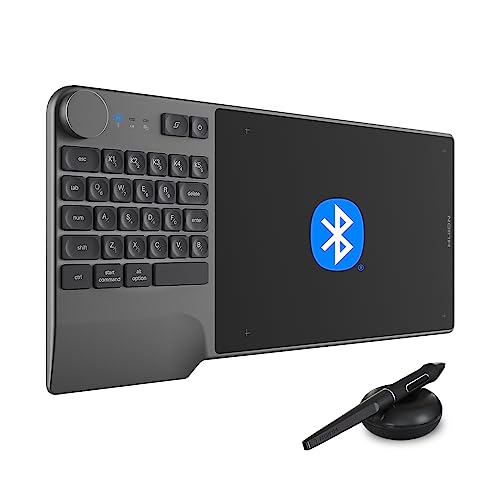
- Bluetooth 5.0 with up to 33-foot range
- 23 keyboard keys, dial, and 5 custom keys
- Battery-free pen with 8,192 pressure levels
Best For: Shortcut-focused artists, editors, and designers
Best Professional Workflow

- 40 programmable shortcut functions
- Two battery-free pens with 8,192 pressure levels
- Windows, Mac, and Linux compatibility
Best For: Professional artists and shortcut-heavy creative workflows
Best Large-Surface Option

- 11-by-7-inch workspace with 16K sensitivity
- Dual Bluetooth 5.0 and 10+ hours of battery life
- Includes wireless shortcut remote and felt nibs
Best For: Illustrators and concept artists needing a spacious workspace
Best Wireless Freedom

- Bluetooth and USB-C connectivity
- 10 x 6.25-inch work area
- Mobile support and ergonomic wrist rest
Best For: Artists seeking a spacious, portable wireless tablet
Best Compact Pick

- Compact 6 x 3.7-inch active area
- Battery-free EMR pen
- Four ExpressKeys and software access
Best For: Students and creators needing a portable wireless tablet
Best Shortcut-Key Value

- 10 x 6.25-inch drawing area
- 16,384 pressure levels with tilt support
- Eight customizable keys and useful accessories
Best For: Beginners wanting a spacious wired tablet with many shortcuts
Feature-Rich Pick
GAOMON WH851 Wireless Drawing Tablet

- 8-by-5-inch active area with 16,384 pressure levels
- Bluetooth 5.0 or USB Type-C connectivity
- Dial plus eight customizable shortcut keys
Best For: Artists who want tactile controls and long wireless sessions
Compact Compatibility Pick
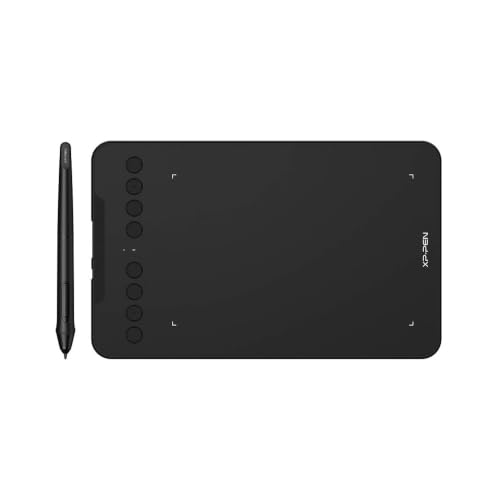
- Compact 7-by-4-inch active drawing area
- Bluetooth 5.0 and USB-C connection options
- Works with Windows, Mac, Android, Chrome OS, and Linux
Best For: Portable creative work and online teaching
Balanced Wireless Pick

- 8-by-5-inch active area with Bluetooth 5.0
- X3-Smart-Chip pen with 8,192 pressure levels
- Eight shortcut keys and broad software compatibility
Best For: Creators seeking a versatile wireless tablet for art and design
Best Balanced Pick – Wacom Intuos Medium Bluetooth
The Wacom Intuos Medium is a practical choice among wireless drawing tablets for creators who want a familiar pen-on-paper feel without a built-in display. Bluetooth connectivity, a battery-free pen, and broad software compatibility make it suitable for drawing, photo editing, design work, and document markup.
Best For: Students, teachers, and general creative work across Mac, Windows, or Chromebook devices.
Pros:
- Wireless Bluetooth or USB-A connectivity
- Battery-free pen with 4,096 pressure levels
- Four ExpressKeys for customizable shortcuts
- Creative software and online training included after registration
Cons:
- Smaller active area than some larger professional tablets
- Only three replacement nibs are included
The Intuos Medium emphasizes dependable, straightforward operation rather than an extensive control layout. It is a well-rounded option for buyers who value Wacom’s established pen technology and want wireless flexibility for everyday creative tasks.
Best Shortcut Controls – HUION Inspiroy Keydial KD200
The HUION Inspiroy Keydial KD200 stands out among wireless drawing tablets by combining a drawing surface with a keyboard-style shortcut panel. Bluetooth 5.0, a control dial, and programmable keys help reduce reliance on a computer keyboard during drawing, editing, and design work.
Best For: Artists, editors, designers, and teachers who want extensive shortcut controls in a compact wireless setup.
Pros:
- Bluetooth 5.0 connection with up to 33 feet of range
- 23 standard keyboard keys, a dial, and 5 customizable keys
- Battery-free pen with 8,192 pressure levels and 60-degree tilt
- Supports Windows, macOS, Android, and many creative applications
Cons:
- Wireless battery life is specified as a minimum of 18 hours, with charging required afterward
- The added keyboard controls may be unnecessary for users seeking a simpler tablet
The KD200 is especially appealing when workflow speed matters. Its dial and shortcut-heavy design can make zooming, brush adjustment, and repetitive commands more convenient than on a basic graphics tablet.
Best Professional Workflow – Xencelabs Pen Tablet Medium
The Xencelabs Pen Tablet Medium is a premium-feeling option among wireless drawing tablets, pairing a textured 12-inch-class tablet with extensive programmable controls. Its wireless operation, OLED-equipped shortcut keys, and two battery-free pens are designed for creators who want a configurable workflow across Windows, Mac, and Linux.
Best For: Professional artists, illustrators, and designers who need many application-specific shortcuts.
Pros:
- 40 programmable functions arranged across five sets of eight keys
- OLED display shows key assignments at a glance
- Two battery-free pens with 8,192 pressure levels
- Compatible with Windows, Mac, Linux, and major creative software
Cons:
- At about 2 kg, it is less travel-friendly than lighter tablets
- The extensive controls may require setup and customization time
The Xencelabs bundle is built around control and flexibility rather than minimalism. Its textured surface, dual-pen setup, and large shortcut system make it a strong fit for complex creative workflows where fast access to tools is important.
Best Large-Surface Option – XPPen Deco Pro LW 2nd Gen
The XPPen Deco Pro LW 2nd Gen offers one of the more feature-rich designs in this wireless drawing tablets roundup. Its spacious 11-by-7-inch workspace, 16,384 pressure levels, dual Bluetooth 5.0, rear stylus eraser, and separate wireless shortcut remote give illustrators room and flexibility for detailed work.
Best For: Concept artists, professional illustrators, and creators working with large monitors or demanding shortcut workflows.
Pros:
- Large 11-by-7-inch drawing area with 16K pressure sensitivity
- Paper-like surface coating and included felt nibs
- Wireless shortcut remote with programmable controls and scroll wheel
- Supports Windows, macOS, Chrome OS, Android, HarmonyOS, and Linux when wired
Cons:
- Bluetooth compatibility is more limited than wired compatibility
- Wireless battery life is rated at over 10 hours, so regular charging may be needed
- Some iOS use is restricted to compatible drawing applications
The Deco Pro LW 2nd Gen is a compelling choice when a generous workspace and advanced controls matter more than compact size. Buyers should review the wired-versus-wireless operating-system limitations before choosing it for a mobile setup.
Best Wireless Freedom – HUION Inspiroy Frego Medium
The HUION Inspiroy Frego Medium is a flexible option among wireless drawing tablets, pairing a spacious 10 x 6.25-inch work area with Bluetooth and USB-C connectivity. Its battery-free stylus, mobile support, and built-in wrist-rest design make it practical for artists who want a portable setup.
Best For: Artists and students who want a larger wireless tablet that works with computers, Android devices, and supported iPhone or iPad apps.
Pros:
- Bluetooth or USB-C connectivity, with up to 24 hours of battery use after charging.
- Large 10 x 6.25-inch active area with 8192 levels of pressure sensitivity and 60° tilt support.
- Battery-free PW550S stylus includes two programmable side keys.
- Symmetrical, portable design includes a built-in nylon pen holder and wrist-rest area.
Cons:
- Its minimalist design has no physical shortcut keys on the tablet.
- Bluetooth support varies by operating system, so compatibility should be checked before purchase.
The Frego Medium stands out for combining wireless freedom, a roomy canvas, and mobile compatibility. Choose it if you value portability and comfort more than built-in tablet shortcut buttons.
Best Compact Pick – Wacom Intuos Small Bluetooth
The Wacom Intuos Small is a compact choice among wireless drawing tablets, offering Bluetooth connectivity, a battery-free pen, and four ExpressKeys for shortcuts. Its smaller active area suits creators who need an easy-to-carry tablet for drawing, editing, writing, or online education.
Best For: Students, teachers, and creators who want a compact wireless tablet with shortcut buttons and included software access.
Pros:
- Bluetooth or USB-A connectivity supports flexible use at a desk, on a sofa, or outside.
- Battery-free Wacom Pen 4K uses EMR technology and provides 4096 pressure levels.
- Four ExpressKeys provide convenient shortcut access.
- Registration includes access to creative software and Wacom online training.
Cons:
- The 6 x 3.7-inch active area is considerably smaller than medium-format alternatives.
- It uses USB-A for wired connection rather than USB-C.
The Intuos Small is a straightforward, portable option backed by broad software compatibility and useful bundled resources. Its compact drawing surface is best suited to users who prioritize portability over workspace.
Best Shortcut-Key Value – XPPen Deco 01 V3
The XPPen Deco 01 V3 is a large-format option for shoppers comparing wireless drawing tablets, though the supplied configuration connects by USB-C rather than Bluetooth. It combines a 10 x 6.25-inch drawing area, eight customizable keys, and a battery-free 16K stylus for detailed digital work.
Best For: Beginners and digital artists who want a large work area, extensive shortcut controls, and Android compatibility in a lightweight tablet.
Pros:
- 16,384 pressure levels and up to 60° tilt support enable detailed line and shading control.
- Eight customizable shortcut keys work for both right- and left-handed users.
- USB-C connectivity includes adapters for different devices.
- Includes a pen stand, replacement nibs, glove, and protective film.
Cons:
- The supplied notes describe wired USB-C connectivity, not wireless Bluetooth operation.
- Android support requires Android 10.0 or later.
- Some listed operating-system requirements recommend newer Windows and macOS versions for updates.
The Deco 01 V3 is compelling for users who want maximum shortcut control and a generous drawing surface at a beginner-friendly level. Consider another model if cable-free operation is essential.
Feature-Rich Pick – GAOMON WH851 Wireless Drawing Tablet
The GAOMON WH851 is a strong choice among wireless drawing tablets for artists who want a generous 8-by-5-inch active area, extensive shortcut controls, and flexible wired or Bluetooth use. Its battery-free pen offers 16,384 pressure levels and tilt support for detailed digital work.
Best For: Digital artists, designers, students, and teachers who want a dial-equipped tablet for drawing, annotation, or e-signatures.
Pros:
- Supports both USB Type-C wired and Bluetooth 5.0 wireless connections.
- Battery-free pen includes 16,384 pressure levels and 60-degree tilt support.
- Combines a customizable dial with eight programmable keys.
- Offers up to 18 hours of battery operation and works with Windows, macOS, and Android.
Cons:
- The 8-inch screen-size specification refers to the tablet area; this is not a display tablet.
- Wireless operation requires charging the built-in battery.
The WH851 stands out when tactile controls and a larger working surface matter. Its adjustable aspect-ratio settings and broad device compatibility add flexibility for different creative setups.
Compact Compatibility Pick – XP-Pen Deco mini7W
The XP-Pen Deco mini7W is a compact option among wireless drawing tablets, pairing a 7-by-4-inch working area with Bluetooth 5.0 and a battery-free stylus. It is designed for drawing, teaching, remote work, and other creative tasks across a wide range of operating systems.
Best For: Online educators, mobile creators, and beginners who need a portable tablet with broad computer and Android compatibility.
Pros:
- Supports Bluetooth 5.0 wireless use and USB-C wired connection.
- Battery-free pen provides 16,384 pressure levels and tilt response.
- Eight customizable shortcut keys help streamline repeated commands.
- Compatible with Windows, macOS, Android, Chrome OS, and Linux.
Cons:
- Its 7-by-4-inch active area is smaller than the 8-by-5-inch models in this roundup.
- The included wireless connection uses a USB dongle, which occupies a computer port.
The Deco mini7W is a practical fit where portability and operating-system flexibility take priority. Its compact size may be easier to carry, though users who prefer more room for broad strokes may want a larger tablet.
Balanced Wireless Pick – XP-Pen Deco MW
The XP-Pen Deco MW offers a balanced wireless drawing tablet setup with an 8-by-5-inch active area, Bluetooth 5.0, and eight customizable shortcut keys. Its X3-Smart-Chip stylus is designed for responsive positioning, while compatibility with major operating systems and creative software supports varied workflows.
Best For: Creators who want an 8-by-5-inch tablet for digital drawing, design, online teaching, or compatible art software.
Pros:
- Bluetooth 5.0 enables cable-free creative work.
- X3-Smart-Chip stylus provides 8,192 pressure levels and 60-degree tilt support.
- Eight shortcut keys include tactile bumps for easier identification.
- Supports Windows, macOS, Android, Chrome OS, Linux, and software such as Photoshop, Krita, and Blender.
Cons:
- Its 8,192 pressure levels are lower than the 16,384 levels offered by the other listed models.
- The supplied notes identify Bluetooth connectivity; users should confirm their preferred wired setup before buying.
The Deco MW is a versatile choice for users who value wireless convenience, a standard 8-by-5-inch workspace, and broad software compatibility. Its shortcut layout and included adapters also make it adaptable across several devices.
How We Picked the Best Wireless Drawing Tablets
We compared these Wireless Drawing Tablets by looking at connection options, active-area size, pressure sensitivity, shortcut controls, stylus design, compatibility, portability, and overall usability. We also considered whether each tablet suits beginners, students, digital artists, photographers, or experienced creators who need faster control.
Wireless performance matters, but it is not the only priority. A reliable wired fallback, comfortable pen, responsive tracking, and a surface large enough for your preferred strokes can have a greater effect on everyday use.
Quick Comparison
| Best For | What to Look For |
|---|---|
| Beginners and students | Simple Bluetooth setup, included software, and a compact or medium active area |
| Illustrators and designers | A larger surface, high pressure sensitivity, and customizable shortcut keys |
| Productivity-focused creators | A dial or keydial for zooming, brush size, scrolling, and other repeated commands |
| Travel and remote work | Small dimensions, low weight, dependable Bluetooth, and battery-free pen operation |
Key Buying Factors for Wireless Drawing Tablets
Active Area and Tablet Size
A larger active area gives you more room for broad, expressive strokes and can feel better on a large monitor. Smaller tablets are easier to carry and often work well for compact desks, laptops, note-taking, and occasional editing.
Bluetooth and Battery Life
Check whether Bluetooth is built in and whether the tablet can also operate through USB. A wired fallback is useful when the battery is low, wireless interference occurs, or you need the most consistent connection. Battery-free styluses reduce charging concerns.
Pressure Sensitivity and Pen Feel
Higher pressure ratings can provide finer control, but driver quality and calibration are equally important. Look for a comfortable stylus with low-lag tracking, replaceable nibs, and buttons that fit your workflow.
Shortcut Keys and Dials
Customizable keys can speed up undo, zoom, pan, brush changes, and tool selection. A dial or keydial is especially helpful for creators who frequently adjust brush size, canvas rotation, or timeline controls.
Operating-System and App Support
Confirm compatibility with your computer and preferred applications before buying. Check the manufacturer’s current driver support for Windows, macOS, ChromeOS, and creative software such as Photoshop, Illustrator, Clip Studio Paint, and Krita.
Who Should Buy Which Wireless Drawing Tablets?
Choose a small Wacom Intuos or compact XPPen model if portability, simplicity, and a smaller desk footprint matter most. A medium Wacom, HUION, or XPPen tablet is a better all-purpose choice for students and artists who want more drawing room without a bulky setup.
Choose a XENCELABS or dial-equipped XPPen, HUION, or GAOMON model if you rely heavily on shortcuts and want physical controls close to the drawing surface. For demanding illustration and design work, prioritize the largest comfortable active area, customizable controls, and dependable driver support over headline pressure numbers alone.