A drawing tablet with screen gives you direct, pen-on-display control, making digital sketching, painting, illustration, and photo editing feel more natural than working on a separate graphics tablet.
We compared 10 current models across display quality, pen performance, shortcut controls, size, and value to help you find the right fit for your workflow and budget.
Best 10 Drawing Tablet with Screen Picks for 2026
Best Overall

- Fully laminated 13.3-inch Canvas Glass 2.0 display
- 16,384 pressure levels with tilt support
- 99% sRGB and included adjustable stand
Best For: Artists seeking accurate color and advanced workflow controls
Best for Beginners

- Compact 11.6-inch FHD IPS display
- Six shortcut keys plus programmable touch bar
- Battery-free pen with built-in eraser
Best For: Students, beginners, and online educators
Best for Advanced Control

- Fully laminated 13.3-inch FHD display
- Red dial and eight customizable shortcut keys
- 16,384 pressure levels with 60-degree tilt
Best For: Experienced artists who want tactile controls and wide color coverage
Best Budget-Friendly Option

- Matte 11.6-inch FHD IPS screen
- Battery-free pen with 8,192 pressure levels
- Eight programmable keys and tilt support
Best For: Beginners, students, and educators wanting direct-on-screen drawing
Best for Pro Workflow

- 16,384-level battery-free pen with tilt support
- Full-laminated 15.6-inch display with 120% sRGB
- Six keys, Smart Touch Bar, and included stand
Best For: Professionals and students who want precise, computer-connected drawing
Best Color Flexibility

- 143% sRGB gamut with four color modes
- 16,384-level pressure-sensitive battery-free stylus
- Eight keys and scroll wheel for shortcuts
Best For: Students and artists seeking flexible color control and broad compatibility
Best High-Resolution Display

- 2.5K 2560×1600 IPS display
- Pro Pen 3 with 8,192 pressure levels
- 99% DCI-P3 and 100% sRGB coverage
Best For: Digital artists who want a detailed, color-rich connected display
Best Portable Pro Pick
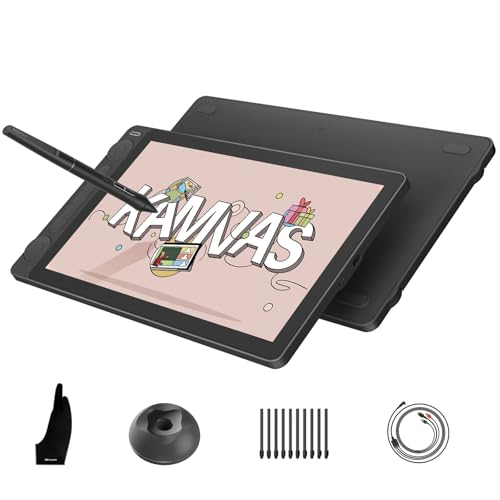
- 13.3-inch full-laminated Canvas Glass 2.0 display
- 16,384-pressure-level PenTech 4.0 pen
- Dual dials and factory-calibrated color
Best For: Portable digital art and color-conscious creators
Best Compact Workflow

- Lightweight 11.9-inch Full HD pen display
- 16,384-level X4 pen with tilt support
- Dual X-Dial wheels and eight customizable keys
Best For: Students and portable creative workflows
Best Large-Screen Value

- 15.6-inch full-laminated 1920x1080 display
- 120% sRGB and 92% AdobeRGB gamut volume
- Six shortcut keys, touch bar, and adjustable stand
Best For: Desktop drawing, painting, and design work
Best Overall – HUION Kamvas 13 (Gen 3)
The HUION Kamvas 13 (Gen 3) is a strong drawing tablet with screen for artists who want accurate color, a laminated display, and dedicated workflow controls. It must be connected to a computer, laptop, or compatible Android device to work.
Best For: Illustrators, designers, and digital artists who want a compact pen display with advanced pressure sensitivity and included stand.
Pros:
- Fully laminated 13.3-inch Canvas Glass 2.0 display helps reduce glare and parallax.
- 16,384 pressure levels, 2g initial activation force, and 60-degree tilt support provide responsive pen control.
- Color-focused display offers 99% sRGB coverage, 16.7 million colors, and factory calibration.
- Five shortcut keys, dual dial controls, and an adjustable stand support efficient workflows.
Cons:
- It is not standalone and requires a compatible computer, laptop, or device.
- A full-featured USB-C cable is sold separately.
With its accurate color, modern laminated glass, high pen sensitivity, and included adjustable stand, the Kamvas 13 (Gen 3) is a well-rounded choice for creators who want a capable desktop pen display.
Best for Beginners – XP-PEN Artist12
The XP-PEN Artist12 is a practical drawing tablet with screen for beginners, students, and remote educators. Its compact 11.6-inch FHD display, customizable controls, and battery-free pen make it suitable for drawing and digital writing, but it needs a computer to operate.
Best For: Beginners, students, teachers, and creators who want a compact pen display for drawing, photo editing, or online instruction.
Pros:
- 11.6-inch 1920×1080 IPS display provides detailed visuals with 100% sRGB coverage.
- Six customizable shortcut keys and a programmable touch bar help streamline common actions.
- Battery-free pen includes a digital eraser and comes with replacement nibs.
- Works with Windows, Mac, Linux, and major creative and video-conferencing software.
Cons:
- It must be connected to a computer and requires available HDMI and USB-A ports or an adapter.
- Its 8,192 pressure levels are lower than newer high-sensitivity models.
The Artist12 keeps the essentials accessible without adding unnecessary complexity. It is especially appealing for entry-level drawing, classroom work, and remote collaboration where a compact screen-based workflow is useful.
Best for Advanced Control – XPPen Artist 13.3 Pro V2
The XPPen Artist 13.3 Pro V2 is a feature-rich drawing tablet with screen for artists who want a larger working area, high color gamut, tilt recognition, and physical controls. It connects to a computer or laptop rather than operating as a standalone tablet.
Best For: Animators, concept artists, photo editors, and experienced creators who value a dial-based workflow and wide color coverage.
Pros:
- Fully laminated 13.3-inch FHD display minimizes parallax and covers up to 123% sRGB according to the supplied specifications.
- Red dial and eight customizable shortcut keys provide quick access to zoom, brush size, and canvas controls.
- Battery-free stylus supports 16,384 pressure levels and up to 60 degrees of tilt.
- Supports Windows, Mac, Chrome OS, Linux, and software such as Photoshop, Illustrator, SAI, and Blender 3D.
Cons:
- It requires a connected computer or laptop.
- The supplied notes do not specify a standalone operating mode.
The Artist 13.3 Pro V2 stands out for creators who prefer tactile controls and natural shading gestures. Its laminated screen, high color coverage, and tilt-enabled stylus make it a strong option for detailed creative work.
Best Budget-Friendly Option – GAOMON PD1161
The GAOMON PD1161 is a straightforward drawing tablet with screen for beginners, students, and artists who want direct-on-screen drawing at a compact size. Its matte-coated 11.6-inch display and battery-free pen are designed for use with a Windows or Mac computer.
Best For: Beginners, educators, and hobbyists seeking an affordable-feeling pen display with useful shortcut controls and paper-like screen texture.
Pros:
- Full HD 11.6-inch IPS display includes a matte film to reduce glare and provide a paper-like feel.
- Supports 100% sRGB coverage and 16.7 million display colors.
- Battery-free stylus offers 8,192 pressure levels and tilt functionality.
- Eight programmable side keys and two pen buttons support customizable shortcuts.
Cons:
- It is not standalone and must connect to a Windows or Mac computer.
- HDMI and USB ports are required, and an adapter may be needed for other connections.
- The laptop may need the included power adapter if it cannot provide enough power.
The PD1161 focuses on the core pen-display experience while including practical extras such as a matte surface, programmable keys, replacement nibs, and a stand. It is a sensible choice for learning digital art or handling notes and diagrams.
Best for Pro Workflow – HUION Kamvas Pro 16 V2
The HUION Kamvas Pro 16 V2 is a strong drawing tablet with screen for artists who want a paper-like surface, detailed pen response, and quick access to frequently used controls. It connects to a computer or laptop rather than operating independently, and it is not a touch-screen tablet.
Best For: Creative professionals, students, and designers working in illustration, animation, painting, or 3D modeling.
Pros:
- Battery-free pen offers 16,384 pressure levels, 60° tilt support, and 5,080 LPI resolution.
- 15.6-inch full-laminated, anti-glare display provides 120% sRGB coverage and minimal parallax.
- Six customizable keys and a Smart Touch Bar support efficient workflow control.
- Includes a six-angle aluminum stand and a recessed Type-C port designed to help secure the cable.
Cons:
- Requires connection to a compatible computer or laptop.
- It is not a touch-screen device.
- Compatibility and setup depend on the supplied operating-system and software requirements.
Choose this model if pen precision, color coverage, and physical workflow controls matter more than standalone operation. Its included stand and slim design also make it practical for flexible desk setups.
Best Color Flexibility – UGEE UE16
The UGEE UE16 is a versatile drawing tablet with screen that emphasizes broad color coverage, multiple color modes, and accessible physical controls. Its 15.4-inch full-laminated display connects to a computer or compatible Android device for drawing and design work.
Best For: Students, teachers, and artists who want flexible color settings and a straightforward shortcut layout.
Pros:
- 143% sRGB color gamut and four color-space options support different viewing and design needs.
- 16,384 pressure levels and 60° tilt support provide responsive pen input.
- Eight shortcut keys and a scroll wheel offer tactile access to common functions.
- Supports Windows, macOS, Chrome OS, Android, and Linux, along with several popular art apps.
Cons:
- Requires an external computer or compatible device rather than working as a standalone tablet.
- The supplied 3-in-1 cable is packed separately, so the parcel should be checked carefully.
- The listed screen resolution is 1920×1080, rather than a higher-resolution panel.
The UE16 is a practical pick when color flexibility and shortcut access are priorities. Its broad operating-system support makes it adaptable, though buyers should confirm their device connections before ordering.
Best High-Resolution Display – Wacom Cintiq 16
The Wacom Cintiq 16 is a drawing tablet with screen designed for detailed digital art and design work. Its 2.5K IPS display, Pro Pen 3, and wide color coverage make it suited to creators who want a sharp on-screen workspace connected to a compatible Mac or PC.
Best For: Digital artists, illustrators, animators, and 3D designers who prioritize display detail and pen control.
Pros:
- 16-inch IPS display uses a 2560×1600 resolution for crisp, detailed visuals.
- Pro Pen 3 provides 8,192 pressure levels, tilt support, and three shortcut keys.
- 99% DCI-P3 and 100% sRGB coverage support modern digital-media workflows.
- Built-in fold-out legs provide a 20-degree working angle, and the pen holder can mount on either side.
Cons:
- Designed for connection to a Windows or Mac computer, not standalone use.
- Computers without DisplayPort Alt Mode or Thunderbolt 3/4 may require additional cables.
- The included legs provide one working angle; an adjustable stand is an additional purchase.
This Cintiq is a compelling choice for creators who value a higher-resolution canvas and Wacom’s pen ecosystem. Check the computer’s USB-C video compatibility first, especially if additional cables would be needed.
Best Portable Pro Pick – HUION Kamvas 13 (Gen 3)
The HUION Kamvas 13 (Gen 3) is a drawing tablet with screen for artists who want a portable, color-accurate display with advanced pen control. Its full-laminated Canvas Glass 2.0, 16,384 pressure levels, and dual dials support detailed digital artwork, but it must be connected to a compatible computer, laptop, or supported Android device.
Best For: Artists, designers, editors, and students who prioritize portability, color accuracy, and customizable controls.
Pros:
- Full-laminated anti-glare Canvas Glass 2.0 provides a paper-textured drawing surface with reduced glare and sparkle.
- PenTech 4.0 delivers 16,384 pressure levels, tilt support, and low initial activation force for precise strokes.
- Factory calibration, 99% sRGB coverage, and 90% Adobe RGB coverage support accurate color work.
- Dual dials, five press keys, and a slim 865-gram design suit efficient, mobile workflows.
Cons:
- It is not standalone and requires connection to a computer, laptop, or compatible Android device.
- Its 13.3-inch screen may feel compact for users who prefer a larger workspace.
Choose the Kamvas 13 (Gen 3) if precise pen response and strong color performance matter more than having a large display. Its lightweight design and flexible connectivity make it particularly practical for creators who work in multiple locations.
Best Compact Workflow – XPPen Artist 12 3rd
The XPPen Artist 12 3rd is a compact drawing tablet with screen designed for students, freelancers, and artists who need responsive controls in a portable format. Its 11.9-inch Full HD display combines etched anti-glare glass, full lamination, a 16,384-level X4 pen, and dual X-Dial wheels for common drawing adjustments.
Best For: Students and mobile creators who want a lightweight tablet with programmable controls and broad operating-system support.
Pros:
- Weighs 1.58 pounds and includes a foldable stand for a more portable, comfortable setup.
- AG etched glass reduces glare and fingerprints while providing a paper-like surface.
- The X4 pen offers 16,384 pressure levels, 60-degree tilt support, and 2-gram initial activation force.
- Dual X-Dial wheels and eight customizable keys provide quick access to brush, zoom, and shortcut controls.
Cons:
- The 11.9-inch display is smaller than the screens on many larger pen displays.
- It requires a connected computer or compatible device rather than operating independently.
The Artist 12 3rd is a strong fit when portability and quick controls are central to your setup. Its factory-calibrated 99% sRGB display and wide compatibility add flexibility for school, freelance, and creative software workflows.
Best Large-Screen Value – HUION Kamvas Pro 16
The HUION Kamvas Pro 16 is a larger drawing tablet with screen for artists who want more room for illustration, painting, and design work. Its 15.6-inch fully laminated display, anti-glare glass, adjustable stand, and shortcut controls create a comfortable desktop-oriented setup, though the pen display must connect to a computer or laptop.
Best For: Digital artists and designers who prefer a spacious display, adjustable viewing angles, and strong color gamut coverage.
Pros:
- 15.6-inch full-laminated anti-glare screen provides a spacious 1920×1080 workspace with a lightly textured surface.
- 120% sRGB and 92% AdobeRGB color gamut volume support vibrant, detailed artwork.
- Six customizable express keys and a touch bar streamline shortcuts, zoom, and brush-size adjustments.
- The included stand adjusts from 20 to 60 degrees for a more ergonomic drawing position.
Cons:
- At about 3 pounds, it is less portable than the smaller tablets in this roundup.
- Its pen provides 8,192 pressure levels, fewer than the newer 16,384-level models listed here.
- It is not standalone and must connect to a compatible Windows, Mac, or Linux computer.
The Kamvas Pro 16 makes sense for creators who value a larger working area and comfortable desk use. Its wide color gamut, adjustable stand, and dedicated controls are useful for extended drawing sessions and detailed projects.
How We Picked the Best Drawing Tablet with Screen
We focused on the features that most affect everyday drawing: screen size and resolution, color coverage, surface finish, pen pressure sensitivity, tilt support, shortcut controls, and connection requirements. We also considered whether each model suits beginners, students, hobbyists, or professional artists.
Specifications can vary by configuration and retailer, so confirm included accessories, operating-system support, and cable requirements before ordering. Most of these are pen displays that require connection to a compatible computer rather than standalone tablets.
Quick Comparison
| Best For | Look For |
|---|---|
| Beginners and students | Compact 11.6- to 13.3-inch display, simple setup, and useful shortcut keys |
| Illustrators and hobbyists | Full lamination, strong color coverage, tilt support, and a comfortable pen |
| Professional workflows | Larger 15.4- or 15.6-inch screen, higher color gamut, and ergonomic controls |
| Artists upgrading from an older display | Improved pressure response, reduced parallax, and a higher-resolution screen |
Key Buying Factors for a Drawing Tablet with Screen
Display Size, Resolution, and Surface
Smaller screens are easier to transport and usually cost less, while 15.6-inch models provide more room for detailed work and multiple tool panels. Full lamination can reduce the visible gap between the pen tip and cursor. Matte or anti-glare surfaces help control reflections but may affect texture and clarity.
Color and Viewing Quality
Check color-gamut claims such as sRGB coverage, along with brightness and viewing angles. Wider color coverage is useful for illustration, design, and photo work, but accurate color also depends on calibration and your computer’s display settings.
Pen Performance
Pressure sensitivity matters for line weight and opacity control, while tilt support benefits shading and angled brushwork. Newer pens may improve initial activation, tracking, and consistency. A battery-free pen is convenient because it does not require charging.
Controls, Compatibility, and Setup
Shortcut keys, dials, touch bars, and programmable pen buttons can speed up repetitive commands. Before buying, verify Windows or macOS compatibility, preferred creative apps, USB and power needs, stand availability, and whether a screen protector or glove is included.
Who Should Buy Which Drawing Tablet with Screen?
Choose a Compact Model for Portability and Value
Artists with limited desk space, students, and beginners should start with an 11.6- to 13.3-inch option. These models provide direct drawing control without the footprint or cost of a larger display.
Choose a Mid-Size Model for Everyday Illustration
A 13.3- to 15.4-inch tablet is a balanced choice for digital painting, comics, animation, and design. Look for full lamination, reliable tilt support, and programmable controls if you work for long sessions.
Choose a Larger, Color-Focused Model for Professional Work
Professional illustrators and photographers may prefer a 15.6-inch display with wider color coverage, higher resolution, and a comfortable stand. Prioritize screen accuracy and ergonomics over maximum pressure-level numbers alone.